
Working Directory
Every chat runs its agent in a working directory — the folder the agent treats as "here." It's where the agent looks for project files, and where any project-local agent config (skills, hooks, settings) is picked up. By default that folder is your vault, so the agent works right alongside your notes.
If your vault and your project live in different folders, you can point new chats at the project folder instead — so the agent sees that project's setup without you redirecting every chat by hand.
Set a default for new chats
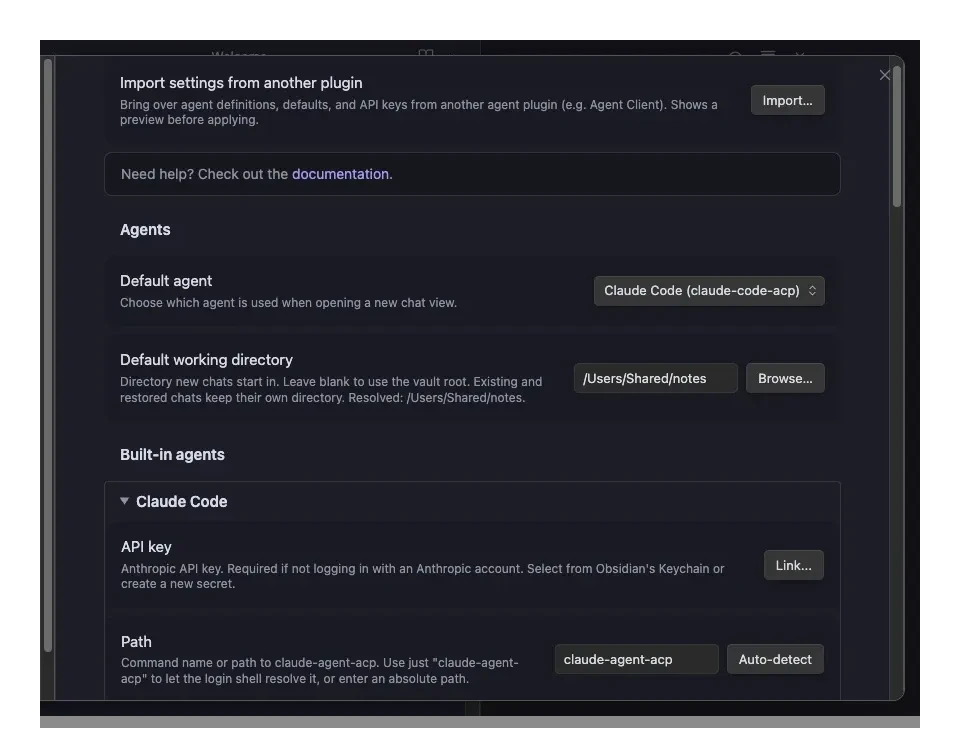
Open Settings → Community plugins → Agent Console and find Default working directory near the top.
- Leave it blank to use your vault — this is the default and nothing changes.
- Enter a folder path (or click Browse… to pick one) to make every new chat start there instead.
The setting shows the resolved folder right below the field, so you always know where new chats will start. If you type a path that isn't a valid folder, Agent Console keeps using your vault and tells you — it never launches a chat in a broken location.
This default only affects new chats. Chats you've already opened — and sessions you reopen from history — keep the folder they were started in.
TIP
This is the persistent version of the per-chat action below. Set it once and every new chat starts in the right place, instead of choosing the folder each time.
Per-agent working directory
If you run more than one agent, each can have its own working directory — handy when each agent's project and config live in a different folder. In Settings → Community plugins → Agent Console, open an agent's section (built-in or custom) and set its Working directory.
When a new chat starts, Agent Console picks the folder in this order:
- the agent's working directory, if set
- otherwise the global default above
- otherwise the vault
Each agent's row shows the folder it resolves to, and an invalid path falls back to the next level rather than blocking the chat. When a new chat starts outside your vault, a brief notice tells you which folder it's running in, and the chat header keeps a banner showing the path — so you always know where the agent is working.
Change the folder for a single chat
You don't have to change the default to work somewhere else once. From the chat header menu, choose New chat in directory…. A small window opens where you can type a path or click Browse… to pick a folder, then Start to open a fresh chat there.
This is a one-off: it starts a new chat in the folder you pick and leaves your default untouched. When a chat is running in a folder other than your default, a small banner shows you which folder it's in.