
Quick Prompts
Save the prompts you type over and over — "debrief this meeting", "summarize the selection", "get the latest on this project" — as little markdown notes, then fire them in one click. No more retyping the same kickoff every session.
A quick prompt is just a note in a folder. The note's label is the button text; the note body is the prompt that gets sent. Add a note, and the prompt shows up right away — no restart.
Set up the folder
By default Agent Console reads quick prompts from a folder named Quick Prompts in your vault. Change it under Settings → Agent Console → Chat behavior → Quick prompts folder.
The first time you create a quick prompt, Agent Console asks once where to keep them — pick any folder from the list (or accept the default) and it remembers your choice. If you've already chosen a folder in settings, it skips the question. This keeps the plugin from dropping a new folder into your vault without asking.
Make a note in that folder for each prompt:
---
label: "🗓️ Debrief meeting"
---
Debrief this meeting — pull the AI summary, extract action items, and update the vault note.- Label comes from the
labelfield (emoji welcome). If there's nolabel, Agent Console falls back toname, thentitle, then the filename. (descriptionis intentionally not used — it clashes with the common note-summary field.) - Prompt text is everything below the frontmatter. If you add a
---line, only the text above it is sent — everything from the---down is ignored, so you can keep help, notes, or draft variations in the note. New prompts are created with a---and a help block below it.
Create a quick prompt
You don't have to hand-write a note — Agent Console can make one for you and open it so you just fill in the prompt.
- Make one from scratch — run Quick prompts: New prompt from the command palette. It creates a templated note (with the
open in new tabandalways showtoggles ready to flip) and opens it. This works even when you have no prompts yet, so it's the way in on a fresh setup. - Create while you search — type
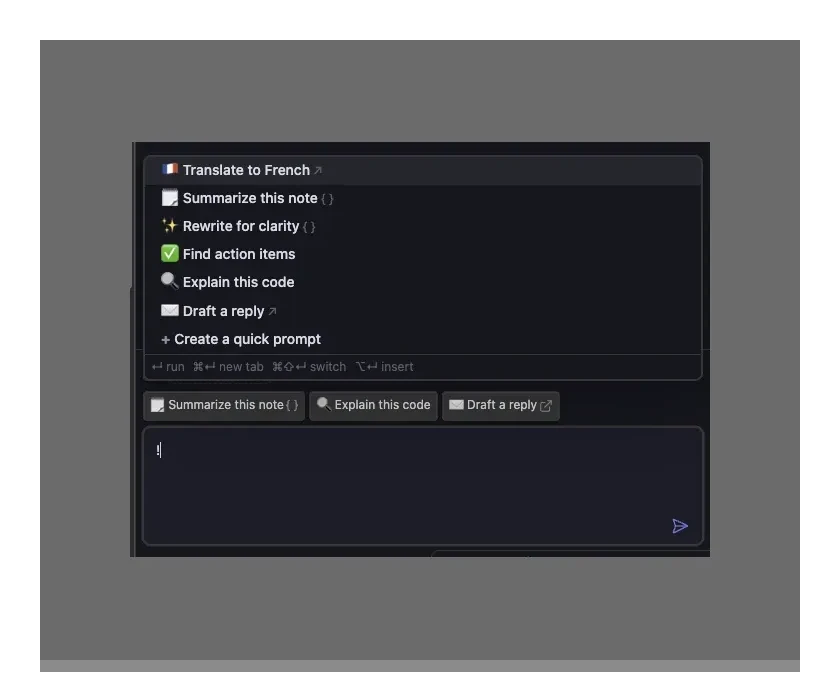
!at the start of a line. A Create… row always sits at the bottom of the list, so you can make a new prompt whether or not anything matched: with text typed it reads Create quick prompt "your text"; on a bare!it's Create a quick prompt. Your text can include spaces, so you can name it right there (e.g.!Daily brief). Pick it to make the prompt and open it. - Save what you've drafted — typed a message you'll want again? Hit
!and pick Create quick prompt from this message, or run the Quick prompts: Save composer as a prompt command. Either saves your message-box text as a new prompt and opens it; your draft stays in the box.
New prompts start quiet — they don't show as a chip until you turn on always show or add show when conditions, so making one never clutters your composer. If a prompt with the same name already exists, Agent Console adds a number instead of overwriting it.
Fire a prompt
Two ways, depending on whether you can already see the prompt:
- Chips above the composer — click one to fire it (see Contextual chips below).
- Type
!at the start of a line in the message box — a search opens right where you're typing, the same place@mentions a note and/runs a command. Keep typing to filter, then press Enter to fire. (It only triggers at the start of a line, so an everyday!in your prose won't open it.) No need to leave the composer, so it's the fastest way to run any prompt.
You can also run Quick prompts: Search from the command palette (Cmd/Ctrl + P) — or bind it to a hotkey under Settings → Hotkeys — to drop a ! into the composer and open the search hands-free.
Firing sends the prompt right away in the current chat, carrying the active note and any selection as context. Modifier keys change where it goes and whether it sends, mirroring how links open in a browser:
On Windows and Linux, use Ctrl / Alt / Shift wherever these show ⌘ / ⌥ / ⇧ — Agent Console shows the keys for your system automatically.
- ⌘ (Cmd) + Enter → send in a new tab, in the background. Add ⇧ (Shift) — ⌘⇧Enter — to switch to the new tab as it opens.
- ⌥ (Alt) + Enter → drop the text into the composer to edit first, instead of sending.
The same keys work when you click a chip (below). The ! search shows this legend right in the dropdown, so you don't have to remember it.
Use your selection
Reference the text you have highlighted with the placeholder:
---
label: "Summarize selection"
---
Summarize the following concisely:

{{selection}}
When you fire this with text selected in a note, the selection is filled in and sent. If nothing is selected, the prompt drops into the composer instead of sending — so you never fire a half-formed prompt by accident.
Open in a new tab
Some prompts kick off a whole new conversation — "debrief this meeting", "get the latest on this project". Check open in new tab in the note's properties and firing the prompt opens a fresh chat tab and sends it there, leaving your current conversation untouched:
---
label: "🗓️ Debrief meeting"
open in new tab: true
---
Debrief this meeting — pull the AI summary, extract action items, and update the vault note.
open in new tabis a checkbox property — toggle it in the note's Properties view, no typing.- Firing it always opens a new tab on your default agent and sends there — even if your current tab is mid-reply or has a message queued. A new-tab chip stays active while current-tab chips are locked.
- A plain click switches to the new tab; hold ⌘ (Cmd) to open it in the background (you stay put) — Agent Console shows a brief "Started … in a new tab" note so you know it's running.
- Hold ⌥ (Alt) to open the new tab and drop the text into its composer for editing instead of sending.
- A
prompt with nothing selected opens the new tab and seeds its composer (with a heads-up) rather than sending half-formed.
Contextual chips
Prompts can show up as chips right above the composer. There are two ways to make a prompt appear as a chip — otherwise it stays search-only (you'll still find it by typing ! in the composer, it just doesn't take up space in the row).
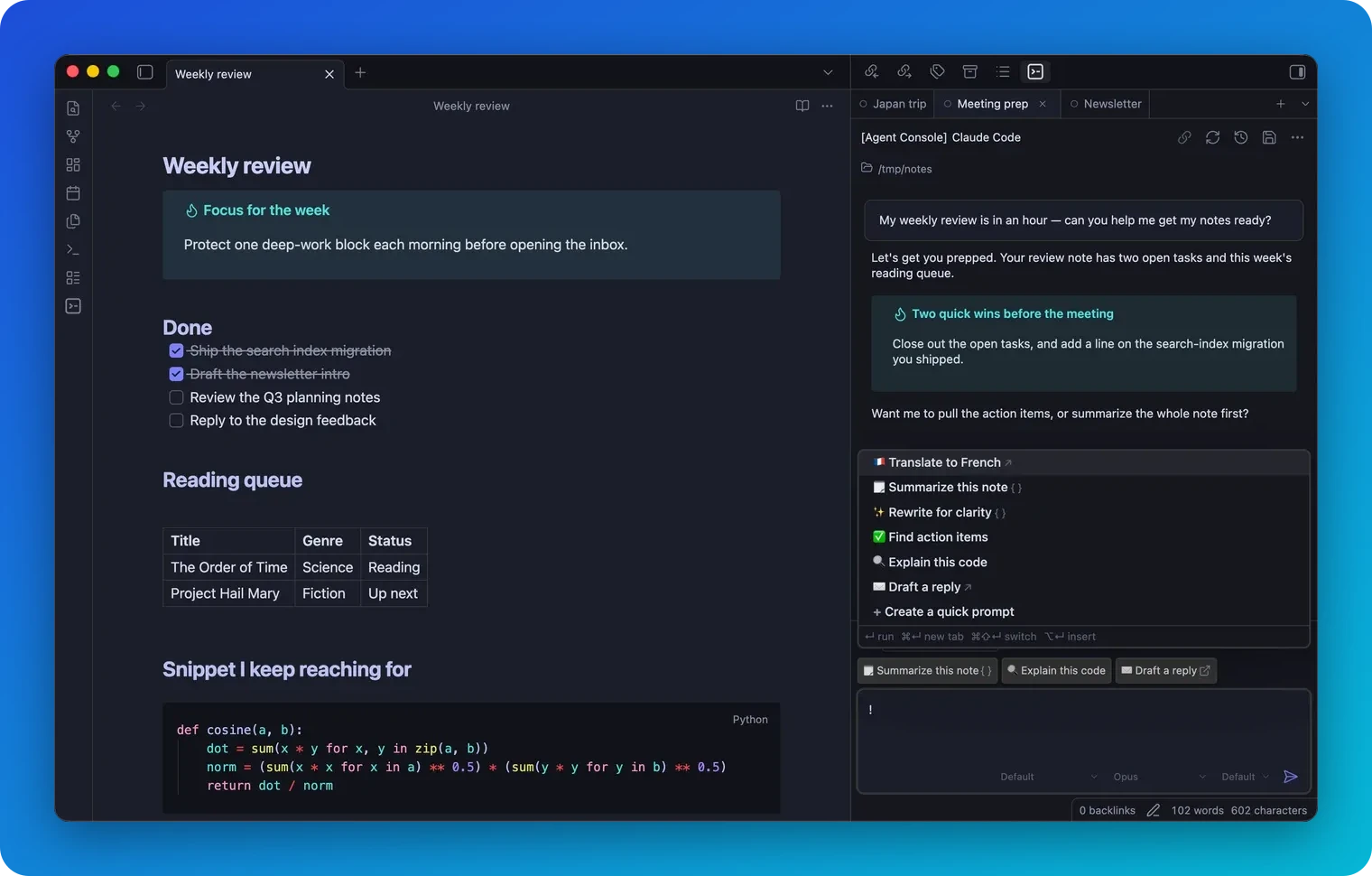
Show a chip only on relevant notes — add a show when field to scope a prompt to notes whose properties match. Each item is a property=value condition:
---
label: "🗓️ Daily brief"
show when:
  - type=daily
---
Give me the daily brief for this note.
Match any note that has a property — write just the property name, with no =. Handy when the value is different on every note, like an id or a link:
---
label: "🔗 Summarize the source"
show when:
  - source-url
---
Summarize the article this note was clipped from.
That chip shows on every note carrying a source-url property, whatever its value.
Match any condition instead of all of them — by default a prompt with several conditions is a chip only where every one matches. Check show when any and one match is enough:
---
label: "🗓️ Meeting or daily"
show when:
  - type=meeting
  - type=daily
show when any: true
---
Give me the brief for this note.
show when any sits directly beneath show when in the note's Properties, and it's a checkbox — no typing. It never changes a prompt with no conditions: that stays search-only either way.
Show a chip everywhere — check the always show checkbox for prompts you reach for on any note ("new chat", "debrief"):
---
label: "🚀 Start a debrief"
always show: true
---
Debrief the meeting I just had.- A prompt with
always showis a chip on every note. - A prompt with
show whenis a chip only on notes whose properties match every listed condition — unless you checkshow when any, which makes one match enough. Use any frontmatter property —type=meeting,status=open,initiatives=[[Project]]. A bare property name with no=—source-url— matches any note that has that property (an empty value doesn't count;falseand0do). The specialtags=key matches the note's tags instead, with nested matching (tags=NoteTypematches a note taggedNoteType/DailyNote), and a baretagsmatches any note that has at least one tag. - A prompt with neither is search-only — never in the chip row, always one keystroke away by typing
!. This is the default, so new prompts don't clutter the row until you opt them in. always showis a checkbox property,show whenis a list property, andshow when anyis a checkbox — all three edit in the note's Properties view.- When no prompts apply to the note you're in, there's no chip row at all — the space is reclaimed.
Click a chip to fire it in the current chat. Hold ⌘ to send it in a new tab (⌘⇧ to switch there), or ⌥ to drop it into the composer to edit first — the same keys as the ! search. When the row runs out of space, a +N at the end folds the rest into the ! search.
Order the chips
By default, chips and the ! list are ordered alphabetically by label — so adding or renaming a prompt can shuffle the row. To pin the ones you reach for most, add an order number to their notes. Lower numbers come first, so order: 0 puts a prompt at the very left and keeps it there:
---
label: "🚀 go"
always show: true
order: 0
---
Go.orderis a number — lower sorts first (order: 0is leftmost,order: 1next, and so on).- Prompts without an
ordersort after every ordered prompt, alphabetically by label — so you only number the few you want pinned. - The same order applies to the
!search list, so a prompt sits in the same place wherever you reach for it.
Manage a prompt (right-click a chip)
Right-click a chip — or focus it and press the context-menu key — to open a small menu for the prompt behind it:
- Edit prompt — opens the prompt's note in a new tab, so you can change its text without losing your place in the chat.
- Copy prompt — copies the prompt's text to the clipboard.
- Rename — changes the chip's label. This renames what you see on the chip; the note's filename stays the same.
How it works with a busy agent
Quick prompts behave exactly like typing a message and pressing Enter, so they follow the same rules as the queue-next-message behavior:
- Agent idle → the prompt sends and starts a turn.
- Agent streaming a reply → the prompt queues and sends the moment the current reply finishes.
- A message already queued → current-tab chips disable in place (a small lock marks them) until you send or edit the queued message. The
!search stays reachable the whole time. - You have unsent text in the composer → firing drops the prompt into your draft at the cursor instead of sending, so your half-typed message is never overwritten.
Tips
- Keep prompt notes short and action-oriented — they're kickoffs, not essays.
- Use emoji in the
labelto make chips and the!search easy to scan. - Prompts are plain notes, so you can version them, grep them, and share them like any other note.