
Obsidian system prompt
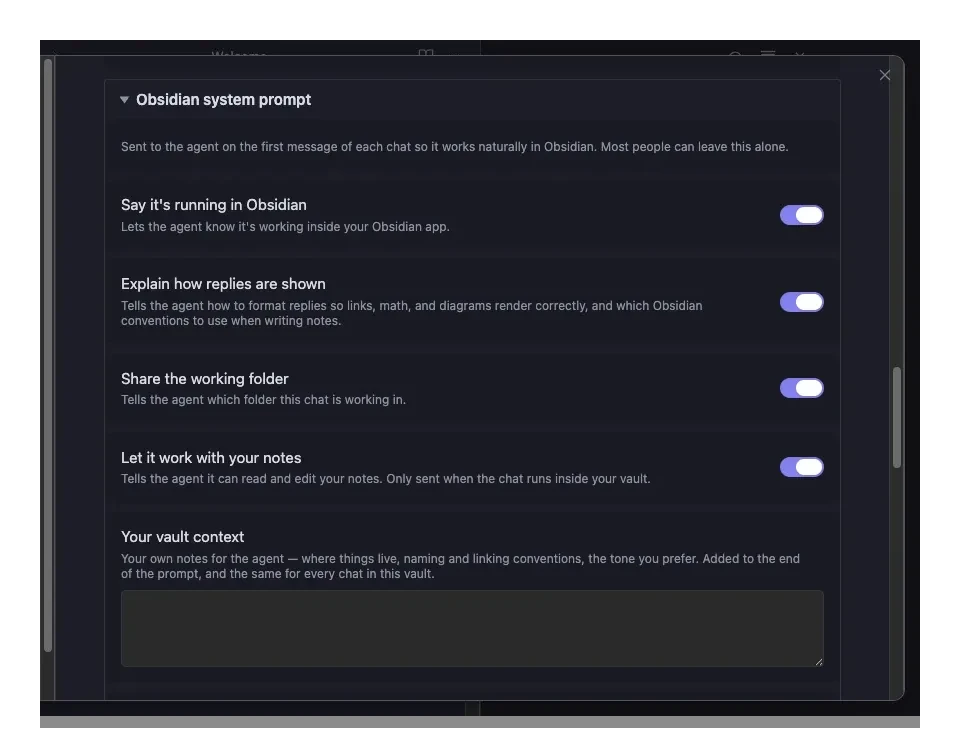
When you start a chat, Agent Console gives the agent a short note about where it's running — so it acts like a natural part of Obsidian from the very first message, without you having to explain your setup.
By default the agent is told five things:
- It's running in Obsidian — so it knows the app it's working inside.
- How your replies are shown — your messages render as Obsidian-flavored Markdown, so the agent uses clickable
[[links]], math, callouts, and Mermaid diagrams. It's also told the conventions to use when it writes notes: callouts, task lists, tags, and frontmatter. - Its working folder — the folder this chat is working in.
- It can offer clickable choices — when the agent has a small set of options for you, it can show them as buttons in its reply. See Clickable choices.
- It can work with your notes — the agent is told it can read and edit your notes to build things with you. This one is only sent when the chat is running inside your vault, so the agent is never told it can touch notes it can't actually reach.
This happens once, on the first message of each chat. Later messages don't repeat it.
Choose what's included
Open Settings → Community plugins → Agent Console and expand the Obsidian system prompt section.
Each of the items above has its own switch — turn off anything you'd rather not send. The agent still works either way; these just help it fit in better.
Add your own context
The Your vault context box is for your own notes to the agent — where things live, your naming and linking conventions, the tone you prefer. Whatever you type is added to the end of the prompt and sent the same way for every chat in this vault. It's the lightweight way to teach the agent about your vault without writing the whole prompt yourself.
See exactly what's sent
The What gets sent box is a read-only preview of the exact text the agent receives on the first message. It updates live as you flip switches or edit your vault context, so the settings always show the honest picture.
Write the whole prompt yourself
Want full control? Edit full prompt… opens an editable box pre-filled with the exact text the switches would send. From there you edit the prompt by hand — the switches are baked into the text and no longer apply. The What gets sent preview keeps mirroring your edits live. Back to options returns to the switches, and your hand-edited text is kept in case you come back.
Start over
Reset to defaults turns all the switches back on, clears your vault context and any hand-edited prompt, and returns to the switches — handy if you've experimented and want the original behavior back. If you've changed anything from the defaults — a switch, your vault context, or the full prompt — it asks you to confirm first so you don't lose your changes by accident.
TIP
Not sure what to change? Leave everything on. The default system prompt is short and helps any agent work more naturally in your vault.