
Sending Images and Files
Attach images and files to your messages to provide context to the AI agent.
Attaching Files
Drag and Drop
- Drag files from Finder/Explorer onto the input area
- The input area highlights when you drag over it
- Thumbnails (images) or file icons (other files) appear below the text area
Paste from Clipboard
- Copy a file or image to your clipboard
- Focus the input field
- Paste with
Cmd/Ctrl + V
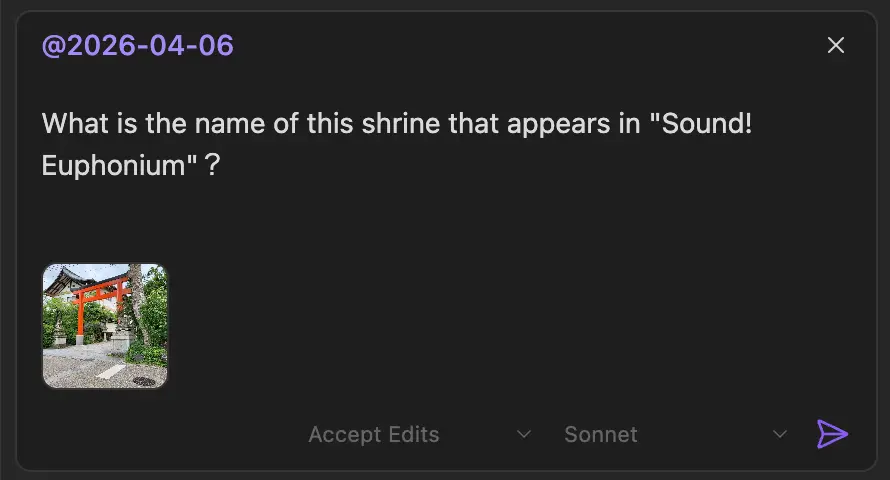
INFO
On a brand-new chat, image paste becomes available once the agent finishes connecting (usually a second or two). If you paste a screenshot before then, you'll see [Agent Console] Still connecting to the agent – paste the image again in a moment. – just paste again once it connects.
TIP
Embedding images in messages requires agent support. If the agent doesn't support images, image files are sent as file references instead (via drag and drop or paste from Finder/Explorer).
Managing Attachments
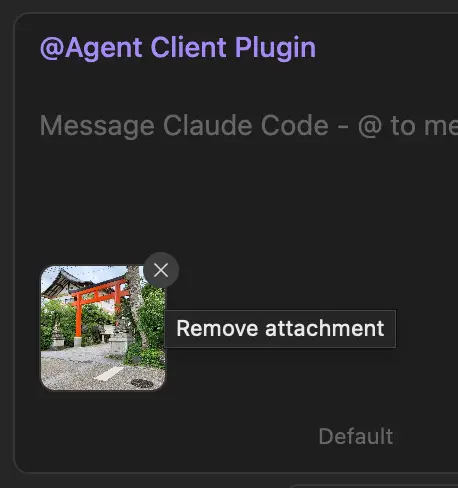
Attached files appear as thumbnails or file icons below the text area.
- Remove an attachment: Hover over it and click the × button
- Attachments are sent with your message: When you send, all attached files are included
Supported Image Formats
| Format | MIME Type |
|---|---|
| PNG | image/png |
| JPEG | image/jpeg |
| GIF | image/gif |
| WebP | image/webp |
Non-image files have no format restriction.
INFO
Non-image files are sent as file path references. How the agent processes the file depends on its capabilities and available tools.
Limits
| Limit | Value |
|---|---|
| Maximum image size | 5 MB per image |
| Maximum attachments | 10 per message (images + files combined) |
INFO
If you exceed these limits, a notification will inform you:
[Agent Console] Image too large (max 5MB)[Agent Console] Maximum 10 attachments allowed