
Note Mentions
Pull any note into a conversation by mentioning it with @ — the agent reads that note as part of your message.
Mention a note with @
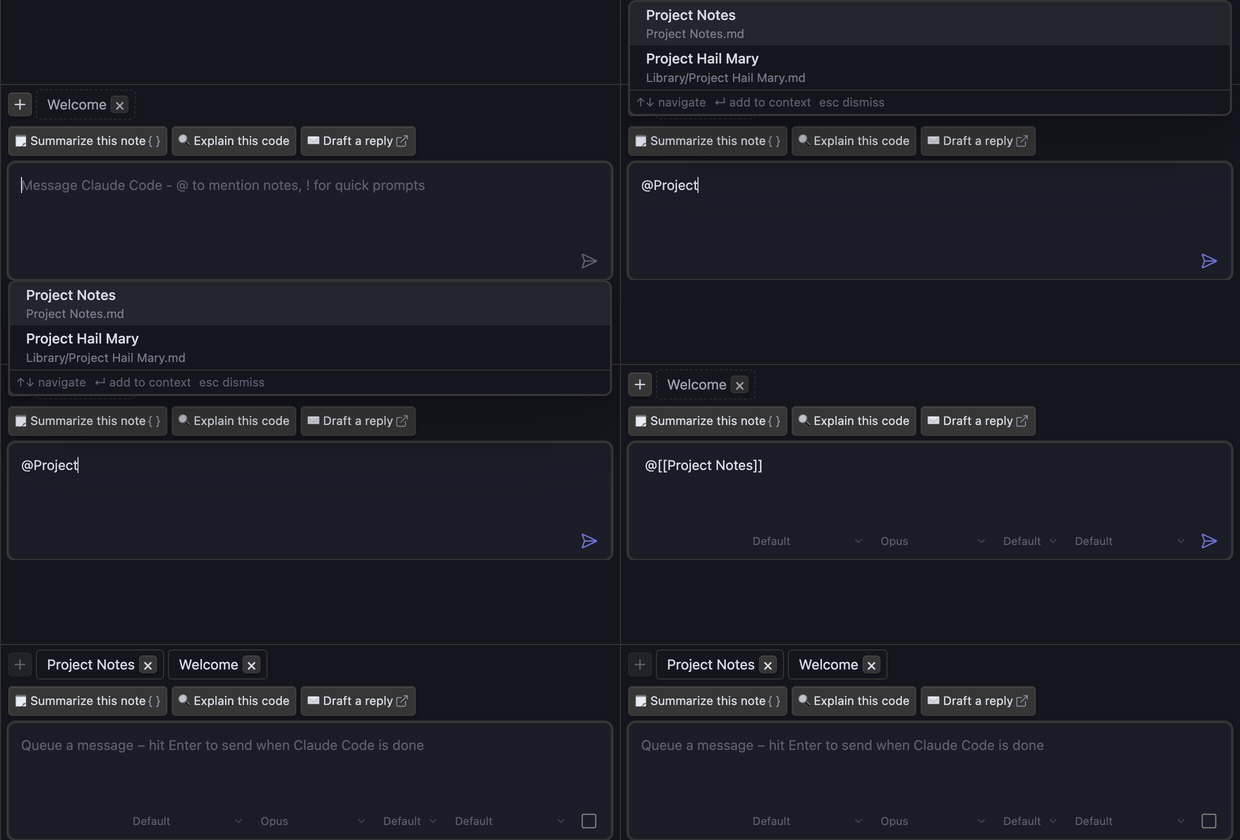
Type @ in the message box and a list of your notes appears. Keep typing to filter — spaces are fine, so agent con finds Agent Console, the same way Obsidian's quick switcher works. Pick a note with Enter (or click) and Agent Console inserts an @[[Note Name]] mention. To dismiss the list and keep typing, press Esc or Shift+Enter — the same keys that close Obsidian's own [[ link autocomplete (v1.3.5+); your typed text stays as-is and the list stays closed until you start a new @.
The list also shows a hint bar along the bottom with the keys — navigate, add to context, and dismiss — so you never have to guess the shortcuts.
When you send the message, the mentioned note becomes part of the chat's context: it appears as a pill in the context strip and stays there for the rest of the conversation.
What the agent receives
Sending a message with a mention includes the note's content, so the agent can reference, analyze, or edit it. Very long notes are sent as a truncated preview (up to 10,000 characters) plus a link to the full note, so the agent can read the rest on demand.
Pinning vs mentioning
Both put a note in the context strip — pick whichever fits the moment:
- Mention (
@) when you're already typing and want to reference a note in this message. - Pin (grab button) when you want a note in context without sending a message yet.
See Context Strip for the full picture of how context is pinned, shown, and controlled.
Opening linked notes
Note references in the chat panel are clickable — both the mention chips you send and any [[wikilinks]] an agent writes back in its replies. Clicking follows Obsidian's usual link conventions:
| Action | Result |
|---|---|
| Click | Opens the note (honors your Always open in new tab setting) |
| Cmd/Ctrl + click | Opens in a new tab |
| Cmd/Ctrl + Alt + click | Opens in a split pane |
| Cmd/Ctrl + Alt + Shift + click | Opens in a new window |
| Middle-click | Opens in a new tab |
Hover a link to preview the note without opening it — the same Page preview popover you get elsewhere in Obsidian. By default you hold Cmd/Ctrl while hovering; you can change whether the modifier is required under Settings → Core plugins → Page preview.
Links to notes that don't exist are shown in Obsidian's unresolved-link style, just like in a note. Hovering one previews "not created yet", and clicking it creates the note (in your Files & Links → Default location for new notes folder) — the same behavior as the editor and reading view.
See also
- Context Strip — pin, show, and control what the agent sees
- Basic Usage — the essentials