
Agent Setup Overview
Agent Console supports multiple AI agents through the Agent Client Protocol (ACP). This section covers how to set up each supported agent.
Supported Agents
| Agent | Provider | Package |
|---|---|---|
| Claude Code | Anthropic | @agentclientprotocol/claude-agent-acp |
| Codex | OpenAI | @zed-industries/codex-acp |
| Gemini CLI | @google/gemini-cli | |
| Kiro CLI | Amazon | Built-in ACP — install from kiro.dev |
| OpenCode | Open source | Built-in ACP — install from opencode.ai; runs local models via ollama |
| Custom Agents | Various | Any ACP-compatible agent |
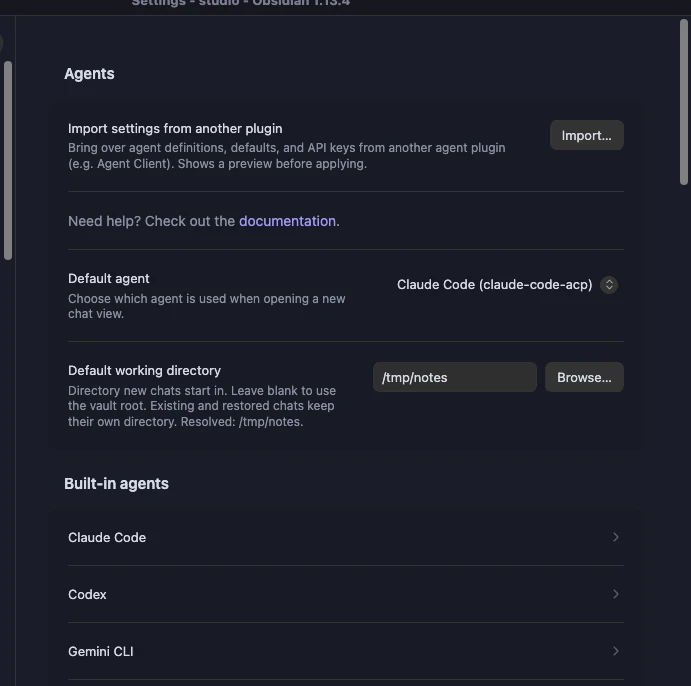
Each agent is configured under Settings → Agent Console. On Obsidian 1.13 and later, each agent gets its own page — click the agent's name to open it, and use the settings search box to jump straight to any setting by name. On older Obsidian versions, agents appear as collapsible sections so the pane stays scannable:
Common Setup Steps
All agents follow a similar setup pattern:
- Install the agent package via npm
- Set up authentication (API key or account login)
The plugin resolves bare command names through your login shell's PATH, so path configuration is often not needed. If the agent is not found automatically, use which (macOS/Linux) or where.exe (Windows) to find the path and configure it in Settings → Agent Console.
WSL Mode (Windows)
For Windows users, we recommend using WSL Mode for better compatibility:
- Install WSL
- Install Node.js and agents inside WSL
- Enable WSL Mode in Settings → Agent Console
- Use Linux-style paths (e.g.,
/usr/local/bin/node)
Switching Agents
Once you have multiple agents configured, you can switch between them using the ⋮ menu in the chat header. To change the default agent for new chat views, go to Settings → Agent Console → Default agent.