
Session History
Resume previous conversations, search across them, or branch off from past sessions.
Agent Support
Session history features are agent-specific. Not all agents support all features.
Opening Session History
Click the History button (clock icon) in the chat header to open the session history modal. You can also run the Open session history command from the command palette, or bind it to a hotkey under Settings → Hotkeys for mouse-free access.

Local and Agent views
Your history has two views, switched with the toggle at the top of the modal:
- Local (the default): every session this plugin saved — across all your agents and all your vaults. This is your full history. When your history spans more than one agent, each row shows a small badge naming the agent that ran it, so you can tell a Claude Code session from a Kiro CLI one at a glance. A session you forked here shows up right away, because the plugin saved it locally — it never depends on the agent listing it.
- Agent: the sessions the agent itself knows about, pulled from its own server. Use this to find a conversation you started outside Agent Console. The Agent pill is named after the tab's agent (for example, Claude Code), so you can tell whose sessions you're looking at. For an agent that doesn't keep a server-side session list (for example, Kiro CLI), the Agent pill is shown but disabled, with a tooltip explaining why — only the Local view is available there.
The toggle remembers your last choice.
The Agent view when you're not connected
Agent Console keeps a small list of your agent's sessions, refreshed each time the agent connects. So even before this tab connects, the Agent view can show that list — marked with when it was last refreshed (for example, "Synced 5 minutes ago – send a message to reconnect and refresh"). Sending a message connects the agent and pulls the latest.
Coming from Agent Client?
If you switched from the original Agent Client plugin, your earlier sessions live on the agent, not in Agent Console's local store yet. When your Local view is empty but your agent has sessions, the empty state points you to the Agent view so you can find them.
Searching Sessions
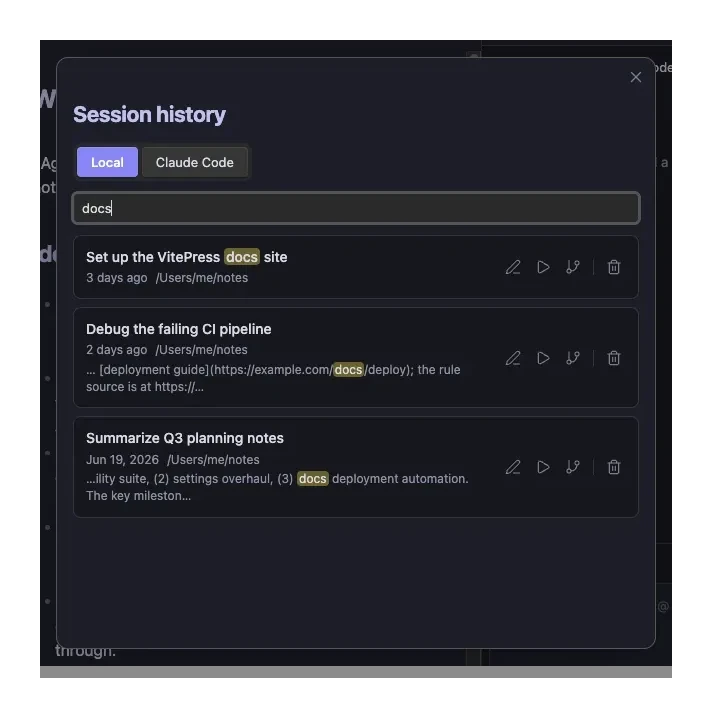
A search box sits at the top of the history modal. Type to filter the list as you go:
- Title match is instant.
- Content match searches inside your saved transcripts — so you can find a session by something that was said in it, even when the title doesn't mention it. The first time you focus the search box the plugin indexes your transcripts (a brief "Searching transcripts…" note shows while it works); after that, filtering is immediate.
Matches that hit message content show a short snippet with the term highlighted, so you can confirm it's the right session before opening it. Search is fully local — no agent connection required.
When your saved sessions span more than one working folder, an Only this folder checkbox appears, with the current folder's path shown beneath it. Check it to narrow the list to sessions whose working folder is the one shown; uncheck (the default) to see sessions from every folder. The filter works on both the Local and Agent views and for every agent — the working folder is whatever directory the agent runs in, which may or may not be your vault root. Agent-view rows the plugin hasn't saved a transcript for can only be matched by their title — content search needs a local transcript.
Available Actions
Depending on the agent's capabilities, you can perform the following actions:
| Action | Description |
|---|---|
| Search | Filter the list by title or message content as you type |
| Edit title | Rename the session from the history modal |
| Restore | Reopen the session in a new tab, right where you left off — your current chat is never replaced |
| Fork | Branch the session into a new tab. Works with any agent — see Fork below for how context is (or isn't) carried over |
| Delete | Remove the session from history |
TIP
Restore and Fork don't require a connected agent. Restore opens the conversation for reading and reconnects on your first message. Fork starts creating the branch immediately because choosing Fork is already interaction intent. Both are offered whenever a session can be reopened (from the agent or from local data).
Session Storage
Sessions are saved automatically when you send messages. The plugin stores:
- Session metadata: Title (the AI-suggested session title once it resolves, otherwise derived from your first message), timestamps, and working directory
- Message history: Full conversation including agent responses, tool calls, and plans
Where Sessions Are Stored
Sessions are saved in two places:
- Plugin side: Stored locally in Obsidian's data folder
- Agent side: Managed by the agent
Restore
Restoring a session reopens it in a new tab — your current chat is left untouched. If the session is already open in another tab, you're switched to that tab instead.
- The session opens in a new tab with its conversation history displayed
- The agent reconnects automatically when you send your first message — no need to connect first
- New messages continue the same session
Use restore when you want to continue where you left off without losing your current chat.
Fork
Forking opens a new tab that branches from a previous session:
- The new tab opens immediately, shows the conversation up to that point, and starts creating the branch
- The original session and your current chat both remain unchanged
- New messages go to the forked branch
Use fork when you want to explore a different direction without affecting the original conversation.
Agent support. Fork works with any agent, but how much context carries over depends on the agent:
- Agents that support server-side forking (
session/fork) create a true branch that keeps the assistant's full context. - Other agents start a fresh session that shows the prior transcript for reference, but the assistant won't have the earlier conversation's context (the transcript is stored locally, not on the agent). You'll see a one-time notice on the first reply — the same notice shown when restoring a session that only exists on disk.
Deleting Sessions
To delete a session:
- Click the Delete button (trash icon) on the session
- Confirm the deletion in the dialog
WARNING
Deletion removes the session from the plugin's local storage only. The session still exists on the agent side.
Troubleshooting
"This agent does not support restoring sessions"
This appears only when a session can't be reopened at all — the agent advertises no restore capability and there's no locally saved transcript to reopen from. Whenever local data exists, Restore stays available (it reopens the session in a new tab and reconnects on your first message). You can always view and delete locally saved sessions.
"Preparing agent..."
The agent is still initializing. Wait a moment for the agent to become ready.
"No local sessions yet"
The Local view has no saved sessions for you yet. Start a conversation to create your first one. If your agent already has sessions (you used it elsewhere, or came from Agent Client), the empty state links you to the Agent view to find them.