
Tabbed Sessions
Run multiple AI agents in parallel as tabs in the chat sidebar.
Headline feature
Tabs are how Agent Console handles multi-session work. Each tab is an independent agent session with its own scroll position, mode, and model — you switch between them without losing context.
Why tabs
AI agents work asynchronously. Tell one to research a topic, another to fix a bug, a third to draft documentation. Tabs let you keep all three open, switch among them while they work, and come back when each is ready.
Status icons on each tab tell you at a glance which agent needs attention.
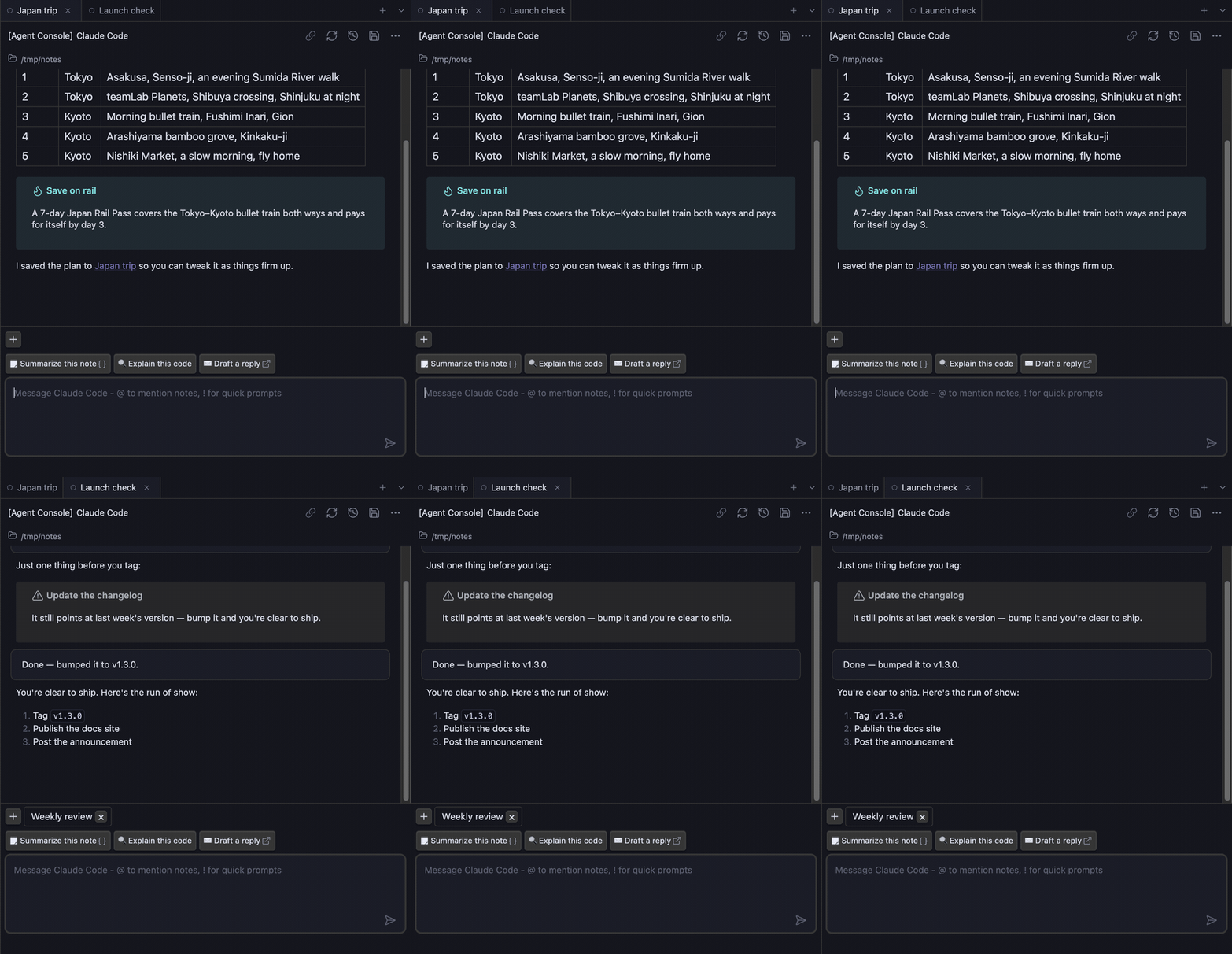
The tab bar
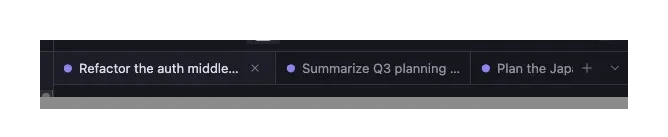
The tab bar appears at the top of the chat sidebar. Each tab shows:
- Label — generated for each new chat; how it's generated is configurable (see Tab titles below). Editable any time via right-click rename. The active tab widens to show its full title, capped to the sidebar width so the title and close button always stay in view; inactive tabs stay short. Hover any tab to see its full title.
- Status icon — at-a-glance signal:
- 🟢 Ready (waiting for your next message)
- ⏳ Busy (agent is generating)
- ❓ Permission needed (agent paused on a tool call)
- ⚠️ Disconnected (agent process exited)
- Close button (×) — appears on hover
A + button on the right of the tab bar opens a new tab.
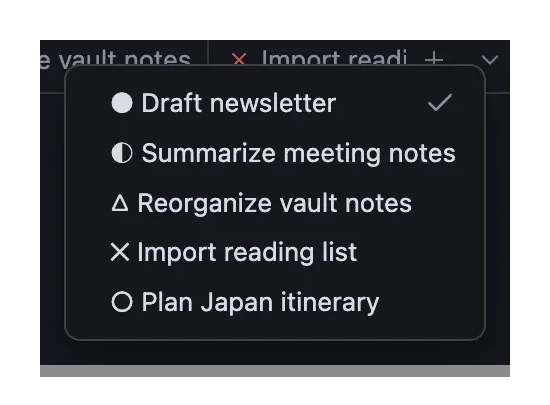
A ˅ chevron beside it opens a dropdown listing every tab — including any scrolled out of view. Each entry is prefixed with the tab's status glyph (● ready, ◐ busy, △ permission needed, ✕ error, ○ disconnected), with a checkmark on the active tab. Because it shows all sessions at once, it's the quickest way to spot which one is stuck or done when many tabs are open.
Creating tabs
Three ways:
- + button at the right of the tab bar — opens a new tab with the active tab's agent
- Right-click the + to pick a different agent for the new tab (agent picker)
- Command palette → "New tab" — same as the + button
Each new tab starts connecting to a fresh agent session immediately, so pasted text is ready to send without typing an extra character first. The tab inherits the active note as context if Active note as default context is enabled.
Switching tabs
- Click a tab to switch
- Hotkeys — assign in Settings → Hotkeys:
Focus next chat view(recommendCmd/Ctrl + ])Focus previous chat view(recommendCmd/Ctrl + [)
- Scroll position is preserved — each tab remembers where you left it
Reordering tabs
Drag a tab along the tab bar to reorder. The order persists for the session.
Tab titles
Get a useful tab name without thinking about it. Settings → Agent Console → Tabs → Session title controls how each new chat is labeled:
- Suggested by the agent in its first reply (default) — the agent reads your first message and proposes a short title, which appears as soon as its reply starts. Until then the tab shows a preview of your first message, so the tab is never blank. If your agent doesn't propose one, the preview just stays.
- Generated from your first message — the tab is named from the start of your first message. No agent involvement.
- Agent name and timestamp — the tab keeps the plain "agent + time" name it opens with and never changes on its own.
You can rename any tab yourself at any time (see below) — a manual rename always wins and is never overwritten by a suggestion.
Renaming tabs
Right-click a tab → Rename. Names must be unique within the session (duplicate rename is rejected). Names persist across reloads if the session was saved.
Closing tabs
- Close button (×) on the tab — visible on hover
- Middle-click the tab
- Right-click → Close — same as ×
- Right-click → Close Others — closes every tab except this one
- Right-click → Close to the Right — closes all tabs to the right of this one
You can close every tab, including the last one. Closing the final tab clears the workspace to a blank landing screen (below) instead of being blocked — the same way closing the last tab in a browser lands you on a new-tab page. Right-click the only open tab and Close is available there too.
The blank landing screen
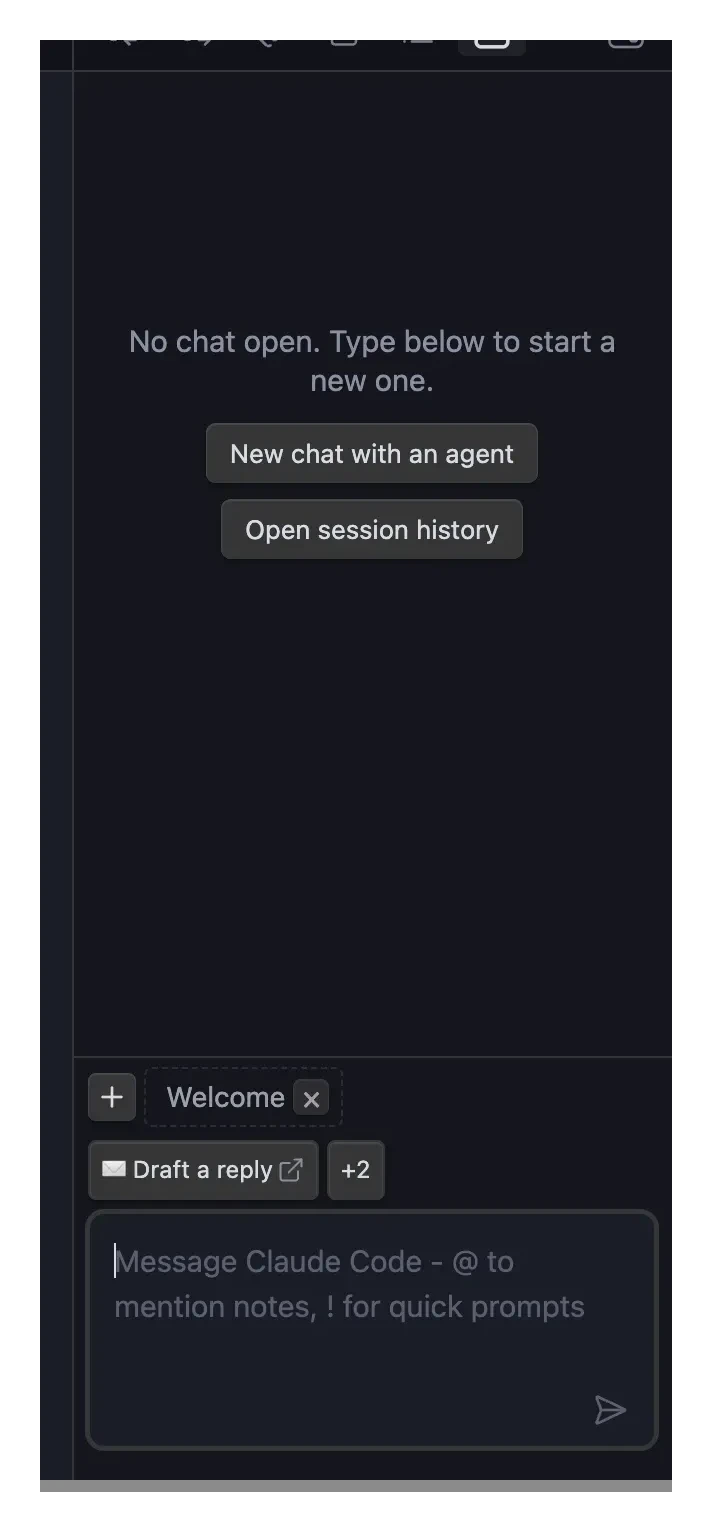
Close the last tab and the chat sidebar shows a neutral landing screen — a launcher, not a dead end. Nothing is running; you start a new chat whenever you're ready:
- Type a prompt and send — starts a new chat on your default agent and sends the message, just like typing in a normal composer.
- Fire a quick prompt — any quick prompt that matches the note you're on starts a new chat and runs it.
- New chat / New chat with an agent — start an empty chat on your default agent, or pick the agent first.
- Open session history — browse your saved chats and reopen any of them in a fresh tab.
Bring notes along. The landing has the same note bar as a normal chat. Pin the note you're working on with the + button (or mention others with @), and the notes you pin come along into the new chat as its starting context — so the agent has them from the very first message.
Nothing connects on its own — the landing just waits for you. Restart Obsidian while you're on the landing and it comes back to the landing, not a surprise new session.
Changed your mind about closing? The Reopen closed session tab command (see Commands) brings back the chat you just closed — including the last one — with its full conversation.
Confirm before closing the whole panel
Closing a single tab is easy to undo, but closing the whole panel — Cmd/Ctrl + W while the panel is focused — tears down every open chat at once, including any agents still running. To prevent losing several sessions to one accidental keystroke, Agent Console asks first:
Close Agent Console? You have 3 open chats. Closing this panel will close all of them.
[Cancel] [Close panel]
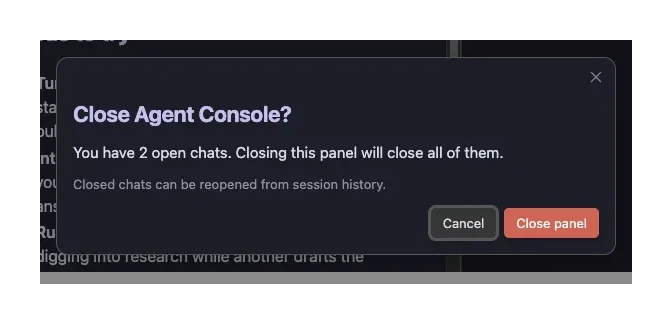
The prompt appears only when the panel has 2 or more open chats. With a single chat, Cmd/Ctrl + W closes immediately — there's nothing ambiguous to confirm.
Turn it off under Settings → Tabs → "Confirm before closing multiple chats" (on by default).
Scope
This guards the keyboard close (Cmd/Ctrl + W) — the path that most often fires by accident. Closing the panel from the pane menu still closes immediately; reopen recently closed chats from Session history.
Per-tab state
Each tab independently tracks:
- Agent process and session ID
- Mode and model
- Scroll position
- Input text — a half-typed prompt you haven't sent survives switching tabs, closing and reopening the panel, and restarting Obsidian
- Attached files (images, notes)
- Permission queue (pending tool-call approvals)
Switching tabs preserves all of this.
Queue your next message
You don't have to wait for the agent to finish before lining up your next message. While a tab is streaming a reply, type your next message and press Enter — it gets queued and sends automatically the moment the turn finishes. Keep your train of thought moving instead of waiting for the cursor. While the agent is working, the empty composer hints this: "Queue a message – hit Enter to send when {agent} is done."
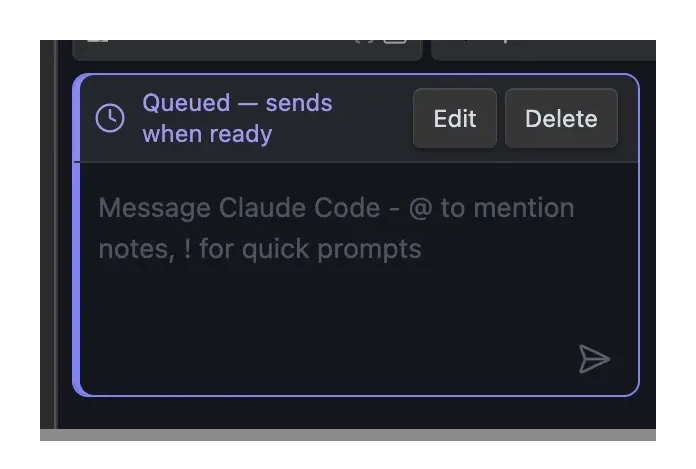
- One at a time. You can queue exactly one message per tab. While a message is queued the composer locks and shows a Queued — sends when the agent finishes banner with Edit and Delete buttons. Edit brings the message back into the composer so you can adjust it and queue again; Delete discards it and gives you an empty composer. (Edit recovers, Delete removes — the message is never lost just by editing.)
- It waits for a clean finish. If the turn ends in an error, or you stop it, the queued message holds — it is not fired into a turn that didn't complete. It stays ready so you can edit, cancel, or let it go on the next successful turn.
- It's safe to lose your place. A queued message is really just your composer text with a "send this next" flag. If you close and reopen the panel, or restart Obsidian, the text comes back as a normal editable draft (the auto-send flag doesn't survive, because the turn it was waiting on is gone). Nothing sends behind your back after a restart.
- Stop still works. The Stop button keeps cancelling the live turn while a message is queued — queuing never takes away your ability to interrupt the agent.
Text only for now — staged image attachments aren't queued in this version.
Completion notifications
Turn on System notifications in settings to get a notification when an agent finishes a reply — useful when several tabs are working at once and Obsidian is in the background. (Notifications stay quiet while Obsidian is focused.)
- The notification names the tab. The title is the tab's name, so you can tell which conversation just finished without opening Obsidian and scanning the tab bar.
- Click it to jump straight there. Clicking the notification brings the right vault window to the front and switches to that exact tab.
Tab error recovery
If a tab crashes (rare; usually due to an agent process error), the tab shows an error boundary with a Retry button. Click Retry to reset just that tab without affecting others.
Sidebar placement (left or right)
Agent Console lives in the sidebar — dockable on the left or right. Multiplexing happens through in-panel session tabs, not separate editor panes. Choose the side under Settings → Agent Console → Display → Sidebar side.
Each sidebar pane manages its own tabs independently. Open Agent Console in both the left and right sidebars and each keeps its own set of tabs, restoring them separately across restarts.
Broadcast commands
Control multiple tabs at once from the command palette:
| Command | Description |
|---|---|
| Broadcast prompt | Copy the active tab's input text and images to all other tabs |
| Broadcast send | Send messages in all tabs simultaneously |
| Broadcast cancel | Cancel ongoing operations in all tabs |
TIP
Broadcast send is useful for comparing how different agents respond to the same prompt. Pair it with Broadcast prompt to set up the same question across tabs.
A tab that already holds a queued message is skipped by both Broadcast prompt and Broadcast send (overwriting or double-queuing a committed message would lose it), and the skip is reported in the command's summary notice. Broadcast cancel cancels the live turns; any queued message holds rather than firing into the cancelled turn.
Persistence across restarts
Open tabs survive an Obsidian restart. When you quit and reopen, each sidebar pane brings back its own tabs — same order, same active tab, each tab's conversation visible right away. Turn this off under Settings → Tabs → "Restore tabs on startup" (on by default). Panes restore independently; split views don't merge into one.
Reopen the panel and pick up where you left off
You don't have to restart Obsidian to get your tabs back. Closed the Agent Console panel? Open it again the normal way — the ribbon icon or the Open chat command — and your last set of tabs comes back: every tab, the one you had active, each conversation, and any unsent draft. Opening the panel resumes where you left off, the same way relaunching Obsidian does.
When you actually want a clean slate, choose Open new view (in the tab-bar ⌄ menu, or the command of the same name) — that opens a fresh, empty panel and never pulls back old tabs. So "open" resumes and "new" starts fresh, with no overlap. Prefer everything fresh? Turn off Settings → Tabs → "Restore tabs on startup" and every open starts empty.
Unsent drafts come back too
A half-typed prompt you never sent is restored with its tab. Whether you switch to another tab, close and reopen the panel, or restart Obsidian, the text you were composing is waiting in the composer when you come back — re-typing a long prompt from scratch is exactly the kind of rework this avoids. The draft clears the moment you send it. (Staged image attachments aren't part of the draft yet — text only.)
Reload history that wasn't saved locally
Once in a while a restored tab can't find its saved messages on disk – rare, but it can happen if a write was interrupted while Obsidian was closing. When that happens the tab no longer comes back blank. It shows a short note, "History for this tab is not stored locally," with a Reload from agent button. Click it and the agent replays the earlier conversation, so your history comes back. Nothing reconnects on its own – the reload happens only when you ask for it.
When chats connect
A chat you deliberately create starts connecting immediately. That includes a new tab, New chat, Open new view, and Fork. You can paste a prompt into a fresh tab and send it directly – there is no extra “wake-up” keystroke.
Chats brought back for reading stay disconnected until you interact. This includes tabs restored after a restart or panel reopen, Reopen closed session tab, and Restore from session history. Their saved conversation is visible right away; typing or sending reconnects the agent. If the previous session is gone – the agent restarted or it expired – the tab transparently continues from the earlier transcript and shows a one-time notice that the agent's internal state was not recovered.
Switching the agent for an existing tab also waits for interaction. It rebinds the tab without starting another session, so your next typed or sent message connects to the agent you picked.
See also
- Session history — browse past sessions, restore any in a new tab
- Commands & Hotkeys — full list of keyboard shortcuts